Posts

Showing posts with the label Android

This Is the BEST Feature on Android

Image
There’s so much content on the Internet that sometimes you don’t even know what to read or watch. That’s why I like this feature on my Samsung device — and it should be supported on all Android devices, though I haven't tested it. It’s the Google Play Store widget .      This widget can recommend movies and TV shows, not just from paid services or Google Play downloads, but from free platforms too. It has suggested movies like Sleepover or Saved by the Bell —stuff I actually enjoy. It also shows trending podcasts, shows, and sometimes even YouTube videos right on the home screen, and most of the time the recommendations are spot-on. Its killer feature is definitely the sidebar. Tapping Read will show book recommendations in the Play Store (which aren’t always great, to be honest), but it also displays all your reading apps like Libby and Kindle in a clean, Pixel-themed bar at the bottom of the screen. It does the same for games—showing instant games and simple Play Sto...

How to Round Corners of Pictures On Android

Image
How to round picture curves in android.      For some reason I have bot been able to Find a mainstream app that does this style of editing. You see it in Trahan and other YouTube channels, and I always wondered how they did it. This is how you can on Android.      Open the app, rounding picture corners, and click the top-left icon. Then select your image and drag the slider. The black bar will show how much will be removed, then click the scissors button to cut.    If you are satisfied, click save. God bless and talk to you later! 

How to change wallpaper on Samsung phone.

Image
Hello, this is TheTechBoy with a special article.  1. Go to the home screen. Use two fingers to pinch in on the screen, or find a spot that is uncovered on the screen and hold down on the wallpaper. 2. Next, look at the bottom right and click "Wallpaper and style," and then click the "Change wallpapers" button. 3. Select the wallpaper that you want and choose if you want it on the home and lock screen or either. When you are done, click "Next," then click "Done" in the top right corner. God bless and Tech Talk To You Later!!

Offline Face Swap On ANDROID!!

Image
Hello, this is TheTechBoy with a special article.       Face swapping on Android phones usually means you have to use some AI website with "credits" and server wait times. The Play Store is infested with horrible apps that claim to be able to swap faces, but they are just web portals. However, I found one that does it all locally.       This application is called FaceSwapL and it allows you to swap faces via live camera, a photo, or even a video. I tested the photo face swapping, and essentially, you have to import your face image, the image of the face that will be swapped onto the original photo, and it will save. Whenever you want to do a swap, tap the image and then import your image and crop.         After this, the software will automatically swap it. Unfortunately, the application leaves a huge watermark, so you will have to erase it, and to save images, you have to click the save button. I recommend disconnecting the app from Wi...

How to CHANGE COLOR LIVE!!

Image
     This app is so cool! Have you ever wanted to trick your friends or prank them for April Fool's Day? Well, the mobile application "Color Changing Camera" can do just that. The application is a camera app that can change the color of an image or video in real-time. As long as the color is not black or white, it will change the color of the image, and it does a great job.                                                            Guess The Original Color               To film something, select the color with the color picker, then tap the screen to change the color. On brightly colored objects, it does an astounding job, with very little bleed or fragments to show the real color. To take a picture, touch the circle, and to take a video, tap "video," then ...

Offline Games Review

Image
Hello, this is TheTechBoy with a special review.      Hello everyone. In a podcast episode, I bemoaned the lack of decent games on Android phones. Due to low requirements and developers catering to the lowest common denominator, games are often riddled with ads, require an internet connection, and feature low-quality design. However, what if the games were ad-riddled and had MS Paint-quality design but worked offline? One of the top-downloaded games, 100 Offline Games , caught my eye while I was on stream. I downloaded it to test it out, and while I didn’t play every game, I tried a few to get a feel for the gameplay. It’s certainly unique.           Downloading the game is simple, but when you open the app, it prompts you to download a 0.4 GB file containing all 100+ games. This allows the games to load on your device and work offline—great for when you’re on a plane or have limited data. I’m a big advocate for software that works offline, s...

How To Eanble Developer Mode On Android

Image
Unlocking Developer Mode on your Android device grants access to advanced settings that can enhance your smartphone experience. However, enabling these features can introduce security vulnerabilities, so proceed cautiously. Here's how to activate Developer Mode on your Android phone: Access About Phone : Open the Settings app. Scroll down and select About Phone . If you do this a lot on a Samsung phone, you can do more  if you want. Enable Developer Mode : Tap Software Information . Locate Build Number and tap it seven times consecutively. When prompted, enter your device's password or PIN. Access Developer Options : Return to the main Settings menu. Scroll down to find Developer Options listed as a new entry.      Once activated, Developer Mode offers various settings, such as adjusting animation scales to make your device feel faster. For instance, reducing the Window , Transition , and Animator animation scales from "1x" to "0.5x" can enhance the per...

OnePlus 13 Relaesed

Image
     OnePlus recently launched the OnePlus 13, which is priced at $899 for the model with 12 GB of RAM and 256 GB of storage. Interestingly, the 16 GB RAM/512 GB storage version also retails for the same $899.      In terms of specifications, this phone is among the most high-end devices on the market. It features a 6000 mAh battery, which, according to MKBHD, is impressive enough to last a full day. This marks a significant improvement over phones like the Samsung Galaxy S24 Ultra, which, in my experience, typically last only half a day. As for AI, the OnePlus 13 comes equipped with Google Gemini, AI Unblur, and AI-powered photo and note-taking capabilities.      The phone is powered by the new Snapdragon 8 Gen 3 Mobile chip, which is expected to deliver better power efficiency and enhanced processing capabilities. However, new applications tailored to the chip have yet to be developed. As I’ve mentioned multiple times on my podcast, most ...

How to Export Specific Texts as a File on an Android Phone

Image
     It’s harder than you might think. Exporting all your texts is easy, but exporting specific text threads is much more complicated. While searching for a solution to export texts on an Android phone, I stumbled upon a tip from Reddit—the cesspool of idiots, but even a cesspool can be useful sometimes. Unfortunately, because Google is stupid, they did not place this in their, essentially mandated texting application. (DOJ ya wanna break this up orrr…)                You have to use the application Textra. Download Textra from the Play Store and set it as your default SMS app. Tap on the text thread you want to export. Tap the arrow icon in the top right, then click the three-dot menu icon. Select Share and choose Email . Now, here's where it gets tricky. To complete this process, you’ll need a third-party file manager. The ones that worked for me are File Manager + , To...

How To Block Internet Access On Specific Apps On Android

Image
Hello, this is TheTechBoy with a special review.     You can use an internet blocker application to block intrusive ads from mobile applications, keep non-essential applications offline for safety, or prevent applications from accessing your mobile data .       Netgaurd is a good example of this. If you want to do this, first download the application from the Play Store and launch it. At the top left, there is an on and off button. The application will act as a VPN, so after toggling it on, it will ask you to disable the battery optimization settings for this application. Next, go back and scroll or search (using the magnifying glass icon) for the applications you want to block internet access for. If you want to block data access only, click the triangle icon. To block Wi-Fi access, click the 'pizza slice' icon. If you want to get even more granular, click on the application, and you can see some more options.      If you want more options f...

The Battle for Air Supremacy: Sky Warriors vs Metalstorm

Image
     Users of powerful phones may want to push them with some air superiority battles on their devices. I compared two air battle games, Sky Warriors and Metalstorm, on Android using my S24 Ultra in Samsung Gaming Mode.     Sky warriors has interesting 2nd level game mode. It allows you to shoot blooms and ships (that are also shooting at you). While the graphics look good to me as well. In this mode the landscape changes, depending on when you play, so you can play in the snow, or on a volcano, or on just dry terrain. This does affect gameplay as the snow and smoke can can make flying harder. However the terrain is not really Useful, it is not affected by the weapons. At 120 fps and graphics on high mode, everything looks fine to me, and I did not see many frame drops.     Speaking of weapons, you get missile launchers that are unlimited but on a timer, protection from missiles, a radar to see the ships and blimps on the horizon. Another nice thi...

Finally!!! 3d Design on Android

Image
Hello, this is TheTechBoy with a special review!      Finally!!! I found it. As many of you know, I’ve been on the hunt for a non-game app that works offline and fully utilizes the power of my Galaxy S24 Ultra—and I finally found one! I’ve often been critical of how most phone apps are basically web portals that don’t tap into the full processing potential of your $1000 device, but this app is different.      The app I’m talking about is Room Planner , and it’s fantastic. I wanted an application to create a 3D representation of the GNN studio from SSALTW , and this one did the job perfectly—and offline, too! Unlike basic floor planners, Room Planner offers detailed, good-looking 3D visuals. Here’s what you need to know: it’s a hefty app at around 600 MB, so make sure to download it over Wi-Fi unless you want to use up more than half a gig of mobile data. Fortunately, it seems to download all assets for offline use, so you can build your rooms in full 3D wit...

How To Hear Walkie-talkie Traffic On A Phone or PC!!

Image
   Hello, aspiring radio spies!! This is TheTechBoy with a special article. In this article, I will teach you how to use an SDR to intercept walkie-talkie traffic on an Android OR Windows device!! The equipment you will need is an SDR with an antenna (I’m using an RTL SDR), a dongle, internet access for research, and software.     On Android, you will need the application Magic SDR and the RTL SDR driver application. Plug your SDR into your phone using a USB C dongle, open the application, and click the RTL SDR option. Next, do some research on the brand of walkie-talkies your adversaries have and make note of the frequency, mine use 462ish with minor changes depending on the channel they are talking on.    Type in the desired frequency (using the Jump button) and you can use your thumb to pan around to see where the most noise is emanating. When you can lock on to the correct frequency, click ‘RX’ and switch to NFM or USB to hear the transmissions better....

I'm Sorry Android Users...I Can't Use Google Messages

Image
Hello, this is TheTechBoy with a special article.  UPDATED 10/21/23 To correct error.      Google Messages brings RCS to Android phones. This turns a linear SMS-based conversation into a  more modern chat-based conversation. Think Slack or Discord features such as reactions or replying to specific messages but in text form!! However, for some weird reason, Google Messages is the only application that supports that.  Source Google     Fine, I thought, I do not want to deprive my Android Team13ers of the chat experience they deserve so Ill switch from Samsung to Google Messages. It still has Bixby integration so everything will be fine right? Right!!!??? Nope!!     Google Messages does bring great features such as Voice message transcription and auto-delete of OTP and great Spam protection. However, the customization features are horrible. In Samsung Messages, you can change the color of all your chats chat, assign a notification sound to...

How To Screenshot Using Your Hole Punch Camera On Android

Image
Hello, this is TheTechBoy with a special article. First download the application 'NotiGuy' and give it access to the permissions it requires. For today's tutorial, you do not need to give it access to your notifications. Next click interactive notch and click the action to want it to do. I think that the screenshot and camera ones are probably the most useful. I selected the screenshot one because it means no waiting to voice activate or use buttons to screenshot. Lastly click 'long youch' which is recommended. To launch the action just long press on your front facing camera cutout. God Bless and Tech Talk To You Later!!!

ShotCut Is an Underated Video Editor

Image
    Hello, this is TheTechBoy with a special first impression of ShotCut. ShotCut is a severely underated video editing application that is based in South Korea (not China) and I have made 2 videos with it, A YouTube Short and a Podcast episode and I have to say it is amazing. 1. Transitions     The transitions are amazing in this application. They are much better than the LumaFusion transitions. There may not be as many free ones but I like them alot better. Check out this YouTube short to see what the transitions look like. 2. Speed    I was using LumaFusion last week to try to add an intro to 35 min video over Dex and it was very slow. I disconnected from Dex and tried again and it crashed and did not work. This week's podcast episode I added the intro and some transitions and it took less than 40 minutes. I think it was about 10 min. 3. Graphics.    The included graphics are great. Check out the Youth short to see what they look like but I lik...

How to use PicsKit

Image
  Hello, this is TheTechBoy with a special article.    How to use PicsKit. PicsKit is a realy good photo editor with layers. This means that you can import multiple images into the software to make 'Photoshop' like edits. Here are some tips  on how to use it.   Open the application and create a new project. The + button lets you import new images as a layer.     In this mode you can move images around, crop them and stickers and even change the sky as well as play with filters. Scrolling through them lets you download new one  (some are paid).   Two finger zooming out let's you cookout if the image. And touching the crop button on the image in your layer.   Now to cut out an image click the cutout button on the homescreen and you can use this image in pictures ie cutting outsomeos head and pasteing it on someone's body.    Another button on the homescreen allows you to eraseparst if an image, blend it with effects, and add...

How To Pair Your Android Phone To PC To Transfer Files

Image
Hello, this is TheTechBoy with a Question Posed To TheTechBoy.      Somebody sent in a question to TheTechBoy asking how they can pair their Samsung Phone to their Windows PC to see photos and videos on the device. There are plenty of ways to do this here are some. USB:     Connect the phone to the PC via USB and click the notifaction on the phone to allow access to files.         Snapdrop:     If you are on WiFi you can go to Snapdrop.net on your laptop and phone (or download the application). This will allow you to send files and messages between devices. Clicking the button with the cutesy name will let you send files between the device.  A full  Ouick Share:      You can share the video by going to the share the image by going to the share menu and clickink Quick Share. Click the button then click the linksharing icon. Then you can type the link/scan the QR code on you Windows 11 PC. However this ma...

3 Bing Chat Tips in Swiftkey and Should You Use It?

Image
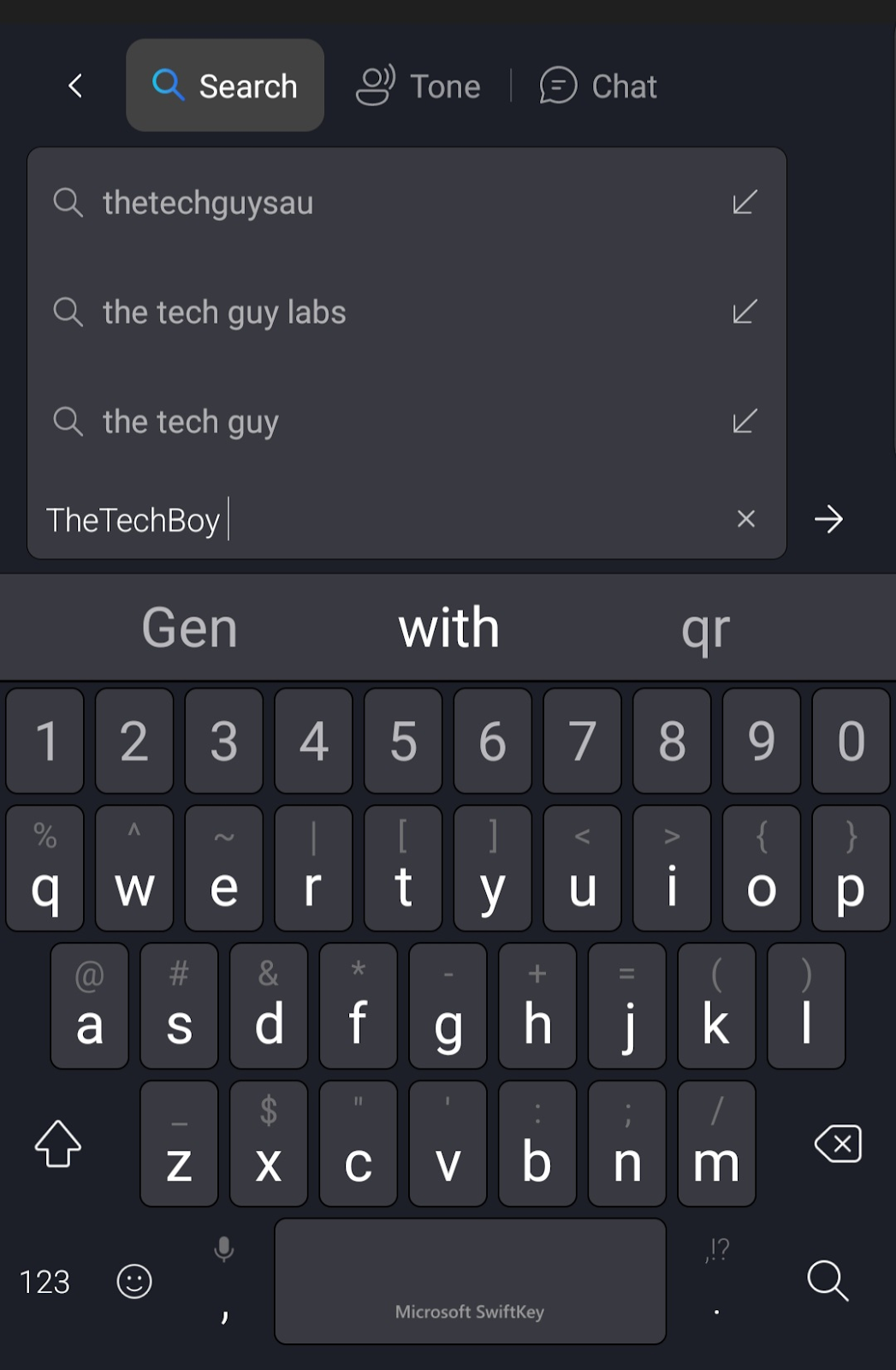
1. Have It Change Your Message To Another Tone.     First, click the B button and click the Tone Icon. Then type something. I typed the phrase, "I love You," and after some processing, it gave me a Professional response, a casual response, a polite response, and a social media option (along with an emoticon/octothorpe). If you don't like the responses you can type it in again. After finding an option click the accept key. This will put it in the search bar/chat app.   2. Search     Have you ever been reading a text/email/chat and needed more information, bing search has you covered. You can look up things on Bing. Swiping to the end, and clicking the "see more results" will open the Bing search engine.  3. Chat     Chatting with Bing AI is easy from Swiftkey. You can then ask it something and get an AI response with citations. You can click the copy button to copy and paste the response.          Should you ...

An Open Letter To Samsung

Image
Hello, this is TheTechBoy with an Open Letter To Samsung.  Dear Samsung, You are a great company. You make great devices and are probably wondering why your premium Android devices are not selling as well. The reason is you started removing features.     Samsung, you used to be innovative and fun. You tried out new concepts such as the Galaxy K Zoom which flopped but you still persisted and now have great zoom today. Other concepts such has an in-display fingerprint scanner and Dex caught on and are now on millions of devices.      However, you slipped when you removed the headphone jack from the Not 10 series and the Micro SD card slot from the S21 series. Sales started declining even more as you raced to become more like the iPhone. The S2 now has more features than the S22 Plus (MicroSD and WQHD screen). You made the Ultra the only phone worth getting.      Samsung, what fans is not an Android iPhone, rather they want innovation. They want...