Posts

Showing posts with the label Samsung

Samsung Trifold Announced

Image
     Samsung Electronics announced the Galaxy Z TriFold, a smartphone that folds twice to deliver a 10-inch tablet-like display while remaining pocketable when closed. The Galaxy Z TriFold unfolds into a 10-inch main screen and folds down to roughly the size of a conventional smartphone, with a 6.5-inch cover display. Samsung claims the device is 3.9 mm thick at its thinnest point when open and weighs 309 grams. Samsung Trifold      Powered by a customized Snapdragon 8 Elite processor, the phone features a 200 MP main camera, a 5,600 mAh battery spread across three cells, and 45 W wired charging. It ships with 16 GB of RAM and storage options of 512 GB or 1 TB. Samsung emphasized several technical refinements made necessary by the triple-fold design: - Two differently sized hinges with a dual-rail structure - A reinforced display layer and new overcoat for durability across two fold lines - Titanium hinge housing and an Advanced Armor Aluminum frame - Exten...

Samsung's Battery Needs To Get Better

Image
    Samsung needs to get better. The OnePlus 15 just dropped, and it has a 7300 mAh battery—over 2000 mAh more than Samsung’s latest and greatest flagship, the S25 Ultra. And while reviews say the S25 Ultra can last a day and a half, my S24 Ultra struggles to make it through a full day . Meanwhile, OnePlus’ flagship lasts almost two and a half days according to Mr. Mobile’s testing, which included extreme use with hotspots and GPS. And look: while OnePlus keeps a slim frame by using a silicon carbon battery, I honestly don’t care if Samsung wants to stick with lithium-ion and make the phone thicker. I use a 10,000 mAh case every day , and it’s fine. This is Samsung’s Ultra —if you want a thin phone, get an Edge or Plus model. The Ultra should have a massive battery, period.      The phone itself has basically peaked. The cameras are good enough for most people. AI will mostly live in the cloud unless you want to destroy the battery. Call quality, apps, g...

Samsung: Cancel the Edge, Improve the Flip

Image
    Samsung released the Galaxy Z Flip 7 series this year with some key improvements — a thinner, lighter design, a bigger cover screen (long gone are the days of Samsung trying to sell a 1.1-inch display as a “minimalism” feature), and finally, DeX support, turning the Flip into a true pocket-sized computer A few months later, Samsung launched the Galaxy S25 Edge, one of the more confusing phones in its lineup.      Sporting a 200-megapixel camera and a tall, slim design, Samsung seems torn between making the Edge a design-centric phone or a performance powerhouse — and honestly, it can’t do both well. Depending on where you shop, the S25 Ultra is actually cheaper than the Edge, though some retailers have discounts that flip the pricing. I’m not sure about the Edge’s gaming performance or battery life, but the better chip may not mean much if the hardware doesn’t back it up.      Sure, you can tweak the software or rely on cropping and AI ...

How To Use Samsung Notes Math Solver

Image
     Samsung Notes has this really cool and useful feature that we’ve wanted for a long time — you can finally solve math equations right on your phone!       First, check the Galaxy Store and make sure Samsung Notes is updated on your device. Then create a new note and tap the three dots at the top right corner of the screen. At the bottom, you should see “Turn on Math Solver.” Turn it on. Next, select the pen or highlighter option and write a math problem. It doesn’t handle algebra or irrational numbers, but it works great for exponents, division, addition, and multiplication.      Be sure to write the equals sign at the end of the equation and write it linearly. The solver is fast and accurate, and it displays the solution in the same color and pen style you selected. The ink is also moveable and editable, just like a regular note. God bless and tech talk to you later!

Tab S10 Live vs Tab S10 FE

Image
     Samsung offers two budget-friendly S-series tablets: the Galaxy Tab S10 Lite and the Galaxy Tab S10 FE, along with a Plus model. Let’s determine which tablet is best for you. The Galaxy Tab S10 FE (128 GB Wi-Fi model) retails for $429.99 USD and features a 10.9-inch display with a 2304 x 1440 (WUXGA+) resolution, supporting up to 90 Hz and compatibility with an S Pen. The Galaxy Tab S10 Lite also has a 10.9-inch display running at up to 90 Hz, but it uses a TFT display instead of the IPS display found in the FE. IPS displays offer better viewing angles and color accuracy, making the FE a superior choice for watching content.       Under the hood, the Tab S10 Lite is powered by an Exynos 1380 chip, while the FE uses the Exynos 1580, which supports faster download speeds and achieves 35% and 41% higher single- and multi-core Geekbench scores, respectively. This suggests the S10 FE performs better for demanding applications or video games. Neither ta...

How To Bypass SIM Setup on ANY Samsung Phone

Image
     For some reason, Samsung Galaxy Z Fold series devices and certain other Samsung models are shipped with a setup process that requires a SIM card. However, if you want to use the phone on Wi-Fi only, don’t have a physical SIM card, or rely on an eSIM from another device, there’s a way to bypass this requirement.      Return to the setup screen and press and hold the volume down button until a message appears stating, "SIM Setup Disabled." Then, proceed through the setup steps, and you should be able to bypass the SIM requirement. This method was tested and confirmed to work on a Galaxy Z Fold 5 running One UI 5.1.1. God bless and Tech Talk To You Later

Samsung Unveils the Galaxy XR

Image
     It's here!! The long-awaited competitor to Apple's Vision Pro was unveiled by Samsung yesterday and should be in the hands of consumers on the 31st. This is the first look at the Samsung Galaxy XR. The Galaxy XR runs Android XR with Gemini built in. According to Sameer Samat, President of Android Ecosystem at Google, "Android XR is the first Android platform built entirely for the Gemini era, and we are incredibly excited to take a significant leap forward today with the launch of Galaxy XR." The headset has a six-microphone array allowing you to use Gemini to navigate Google Maps in a 3D immersive view and search for YouTube videos. Galaxy XR supports 3D Photo & video capture with a 6.5 MP camera and supports passthrough so you ca circle to search in real life. However, the system is not all AI. It is still Android under the hood and can run applications from the Play Store, meaning your favorite apps should still work. Some of the applications included wit...

How to change wallpaper on Samsung phone.

Image
Hello, this is TheTechBoy with a special article.  1. Go to the home screen. Use two fingers to pinch in on the screen, or find a spot that is uncovered on the screen and hold down on the wallpaper. 2. Next, look at the bottom right and click "Wallpaper and style," and then click the "Change wallpapers" button. 3. Select the wallpaper that you want and choose if you want it on the home and lock screen or either. When you are done, click "Next," then click "Done" in the top right corner. God bless and Tech Talk To You Later!!

Samsung Unveils The Premiere 5: Projector Transforms Surfaces into Massive Home Touchscreens

Image
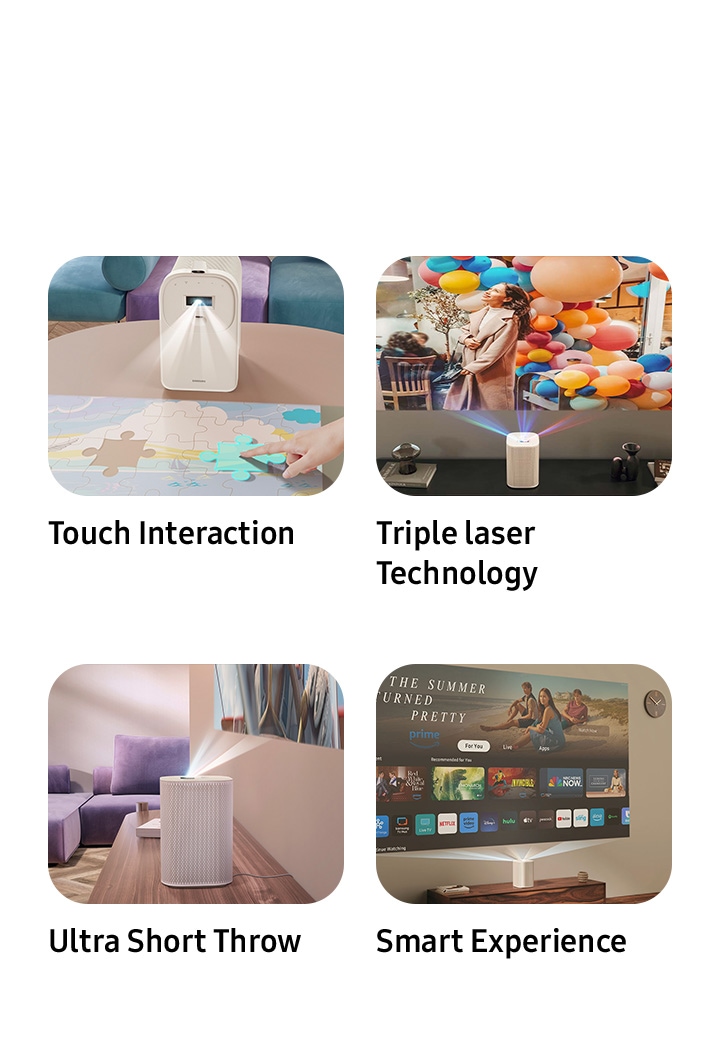
Hello, this is TheTechBoy with Samsung press release. SEOUL, South Korea – May 22, 2025– Samsung Electronics today announced The Premiere 5, a revolutionary projector poised to redefine home entertainment by transforming everyday surfaces like floors and tables into interactive touchscreens. The new device combines ultra-short throw technology with advanced touch capabilities, offering users a versatile and immersive experience, from a 100-inch cinematic display on a wall to a 40-inch interactive surface at their fingertips. "Expanding the projection surface naturally broadens the range of use,” said Jaeyoung Park of Samsung's Visual Display Business, highlighting the core innovation behind The Premiere 5. The compact, "ultra cute" projector utilizes cutting-edge triple laser technology to deliver vivid, pure color images. Its ultra-short throw capabilities mean it can project a massive 100-inch screen from just 17 inches away from a wall, minimizing shadow interfere...

Samsung vs. Google Contacts

Image
      In the battle between Samsung and Google apps, Samsung usually has the most features. Samsung Files can connect to network shares, Samsung Camera has some interesting modes, and Samsung Gallery has the better AI suite. However, this battle may be different.      Samsung Contacts is the default contact manager application on Samsung phones; however, you can install Google Contacts if you would like. Both show contacts alphabetically and allow you to save them to your device.       Google Contacts, upon launch, displays the contacts, but to call or text them you must tap the contact, then tap the button. However, Samsung Contacts lets you swipe left to call and right to message, making for faster use. Secondly, when touching a contact that only has an email address, Samsung allows you to text them while Google does not. Samsung  Google So far, Samsung is ahead and also takes the lead when adding contacts, allowing you to save to...

How To Set Specific Ringtones Per Contact Samsung

Image
Hello, this is TheTechBoy with a special article. Sometimes you may want a special ringtone for specific people on your phone. Here's how to do it on Samsung Contacts. 1. Open Contacts, click the contact, and look for the three dots button. 2. Click the dots, then "Change ringtone and vibration," and then "Ringtone." You have some preloaded options; to use a downloaded song, continue reading. 3. To add a downloaded song, click the plus icon, then "Folders." Search for your want and click "Done." God bless and tech talk to you later.

How To Pin Apps On A Samsung Phone

Image
Hello, this is TheTechBoy with a special article.        If you ever need to hand your phone to someone but don't want them going through it, Samsung has a great feature called "pin app." It essentially turns your phone into a kiosk, only letting that one app be run unless the phone is unlocked.      Click the three vertical dots (the app switcher) and select the application you want to pin. Tap the icon of the app in the switcher, and a label that says "pin this app" will appear.       When you click it, only that application will run. If you want to unlock it, hold down the back and recent buttons and type in your passcode. This works with almost all applications except the native dialer. God bless and Tech Talk To You Later!! 

Samsung Launches Galaxy A56 5G, A36 5G, and A26 5G with AI Features

Image
     Per Samsung Newsroom, Samsung Electronics today introduced the Galaxy A56 5G, Galaxy A36 5G, and Galaxy A26 5G, the latest additions to its Galaxy A series. These smartphones bring "Awesome Intelligence," a set of AI-powered features, to the lineup for the first time, alongside upgrades in camera technology, durability, and security.      The Galaxy A56 5G, A36 5G, and A26 5G feature Awesome Intelligence with One UI 7, including Google’s Circle to Search, which now identifies phone numbers, emails, URLs, and songs directly from the screen. All models include a 50MP main camera. The A56 5G and A36 5G offer 10-bit HDR front-lens recording, while the A56 5G adds a 12MP ultra-wide lens and a Best Face feature for group photos. Object Eraser and custom Filters are available across the series for photo editing.      Samsung states the devices support up to six Android OS and One UI upgrades and six years of security updates. The A56 5G and A36...

S24 Ultra: 1 Year Later

Image
       The S24 Ultra is about a year old now, and I’ve been daily driving it for eight and a half months. In that time, I’ve updated the software to One UI 7.0 beta, broken the S Pen, dropped the device, used it in the rain, and put it through long hours of use. So, what’s good—and what’s not? Storage and Performance This phone comes with 512 GB of storage, which is a significant upgrade over my previous device. Months later, it’s only about two-thirds full—roughly 312 GB in total. I’m not a prolific photographer, but there’s still plenty of room for 8K clips, slow-motion footage, notes, databases, and tech articles. Most of the storage is filled with podcast clips ripped from YouTube, which I then download and edit on the device. This is when the phone’s processing power and 9 GB of RAM really come into play. My editors of choice—LumaFusion (a $20 purchase) and Motion Ninja (for $60)—work well and are relatively fast, as long as they’re open. If I switch to another ...

This Is A Disgrace

Image
     Samsung did it again, removing features from devices.       The S25 Ultra launched to much fanfare on Wednesday. However, one thing was missing: the S-pen. Now, before I go too far, the S-pen is still in the phone and it has an all-new design, which is nice. But it did lose a key feature, Bluetooth functionality. On phones like this before, it was able to pair with the device, and you were able to control the screen without touching it using the S-pen. No more; you have to touch the screen to use the phone. This is disgraceful. Samsung should have kept the feature even if it cost a few more cents.         The more important feature that is missing is also a remote camera shutter. Yes, Samsung says that they have other features that can do this, like the Galaxy Ring and Galaxy Watch, but those cost upwards of $200. When the S-pen is essentially free when it comes to your phone, this is terrible.         And a...

Samsung Unpacked!!

Image
    Hello, this is TheTechBoy with a special live blog!! Samsung Unpacked is today and the S25 series will be launching. Before we get anywhere, I would like to thank Vidnoz my affiliate partner. Check them out here . Buying supports the channel!!    Google Gemeni got mentioned as well as multi moldal Ai. Hopefully it will work offline. 12:05 Nice, Gemini will be able to see what is on your screen and camera!! They are also pushing glasses and screens. 12:06 All the edges are curved on the bezel. No mire sharp corners. The S25 is now an Ai companion.  12:07 Nice personalized Ai data will be stored offline. And a new NPU chip. 12:13 Galaxy Ai and now bar can show data like maps and sports updates. 12:17 has Samsung fixed the magic select tool? 12:17 Samsung is also showing the Google Messages app.  12:18 wow search got so much better!! Let's gooo!! 12:20 circle to search got better 12:22 Samsung just showed the Chrome browser on screen.  12:25 this is ...

How To Change Your Voice On Samsung Phones: NO ADS!!

Image
Hello, this is TheTechBoy with a special article.        Did you know that Samsung phones have a 1st party voice changer? It's ad-free and will work with system-level applications such as the voice recorder and camera, so be careful that you don't record anything important in this mode. Download Good Lock if you do not already have it. If you have it, you need to download the Sound Assistant module in the "Life Up" section. Don't worry, One UI 7 beta users, it works here as well.      Secondly, open this module and scroll all the way down to where it says "voice changer." Toggle the switch on. After toggling it, tap the settings. You will see a few pre-made options, but now you can make your own.      Tap that option and play with the settings. If you are ever recording something and you forgot to turn it off, a little notification at the bottom of the screen will show that it's in use so you can turn it off. God bless, and tech talk to ...

How To Customize The Edge Panel On Samsung Devices!!

Image
Hello, this is TheTechBoy with a special article.      Edge Panel used to be one of Samsung’s standout features. While many phones now have similar options, you can still customize your Samsung Edge Panel to stand out with a different color in just a few simple steps! Open Settings and type Display in the search bar. Find and toggle on Edge Panels , then tap on it. Once you’re in, tap on Handle . Here, you can change the color of your Edge Panel, as well as adjust its size, position, and transparency! God bless, and Tech Talk To You Later!

Get Better Smart Select!!

Image
      When Samsung unveiled its new AI-based screenshot feature, I was very excited. It could pick the shape, extract text, and even, in a later update, record GIFs. However, the old screenshot taker was more stable.       For instance, if I want to screenshot something with words, the AI in it would detect the text and try to copy and paste it. This can be useful sometimes, but most of the time I want the screenshot. I have to select something that doesn't have text and then expand from there.        Secondly, the shapes option is gone. It's only squares and rectangles. No circles or triangles. This is unacceptable. Sure, you could edit it, but on-device it would be so much better.       Lastly, it's slow; it takes a long time to load and is sometimes glitchy. If Samsung can fix this, the AI screenshot would be the best ever! God bless and Tech Talk To You Later!!

How To Change Homescreen Grid On Samsung

Image
Hello, this is TheTechBoy with a special article.        If you want more space on your homescreen, you can change it from a 4 x 5 grid to a 5 x 6 grid. This means more applications will be able to fit on one screen.         Go ahead and use two fingers to squeeze the homescreen. Then click the settings icon on the bottom right.        Click homescreen grid and at the bottom there will be options to switch. If you want to switch the app screen grid, you can also do the same by tapping the app screen grid button. God Bless and Tech Talk To You Later!!